How to add your MSBM certificate to your LinkedIn profile
Now that you have completed one or more of our courses, it is time to let the world know of your accomplishments via your LinkedIn profile. This will help boost your visibility and improve your networking options. And we will show you how to do this in the following three steps.
Step 1:
Log in to your LinkedIn account, then go to your profile.
Step 2:
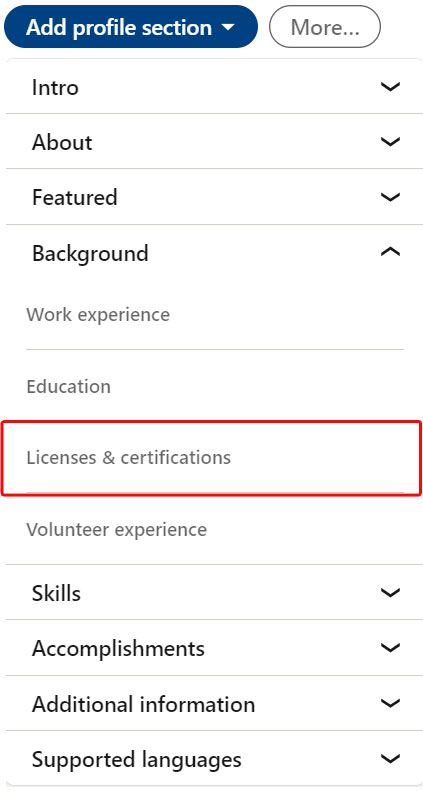
On the right-hand side, click on the “Add profile section” dropdown, choose “Background” and then select “Licenses & Certifications".
Step 3:
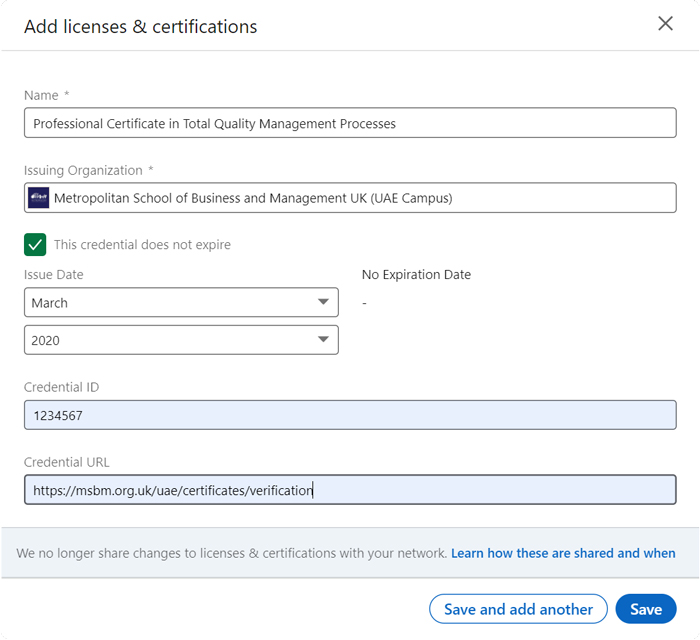
Enter the following information in the pop-up box:
- Name: Enter the name of the course as indicated on your certificate
- Issuing Organisation: Enter “Metropolitan School of Business and Management”
- Issue Date (optional): Enter the issue date as indicated on your certificate
- No expiration (optional): Select the checkbox “This credential does not expire”
- Credential ID: Enter the certificate number that is indicated on your certificate
- Credential URL: Enter https://msbm.org.uk/certificates/verification
You should see a form that looks like the example below.
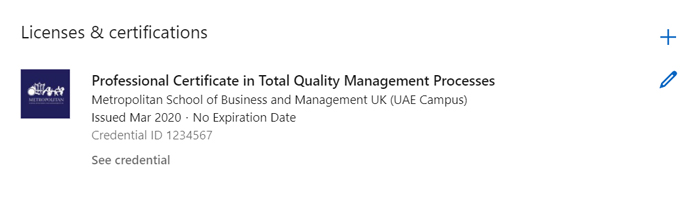
You're all done! Your certificate is now part of your LinkedIn profile.
If you've done everything right, you should see something like the example below.
Bonus Step:
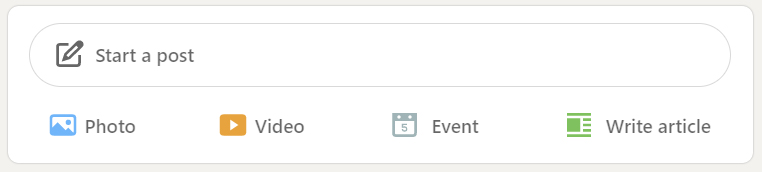
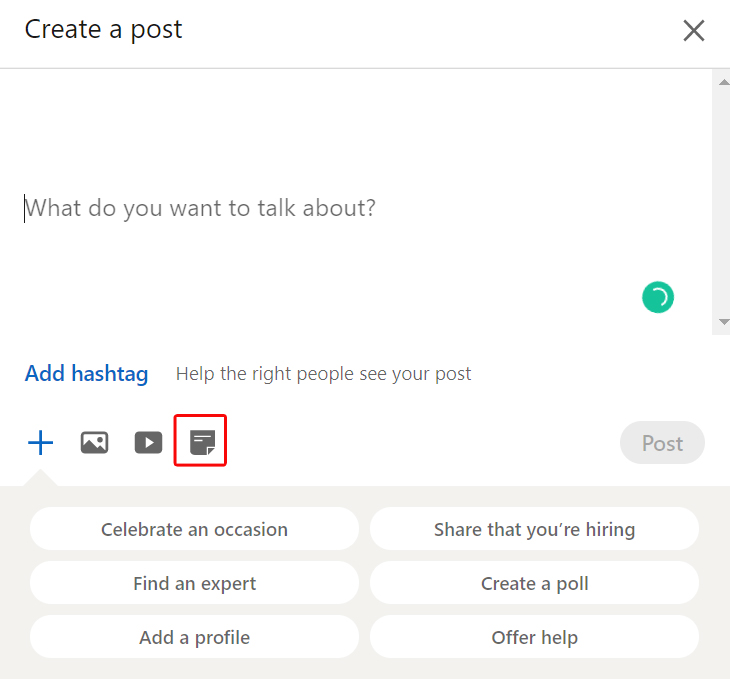
If you want to actively inform your network about your achievement, you can write a post on your LinkedIn feed about your experience at MSBM. You will also find the option to upload your certificate by selecting the Document icon when writing your new post.